CSC1120 Week 2 Homework
Overview
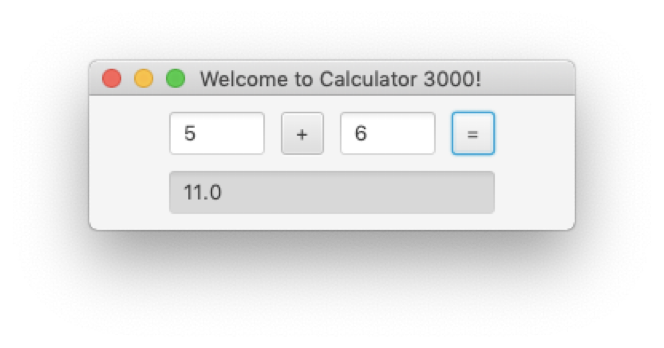
Using JavaFX, write a simple calculator program that looks something like this:
Details
- The program will display the result of adding two integers together as a double when the equals button is clicked.
- The user cannot modify the result TextField
- The background color of the result TextField is red if the result is negative, otherwise the background should be light grey, as shown above and below.
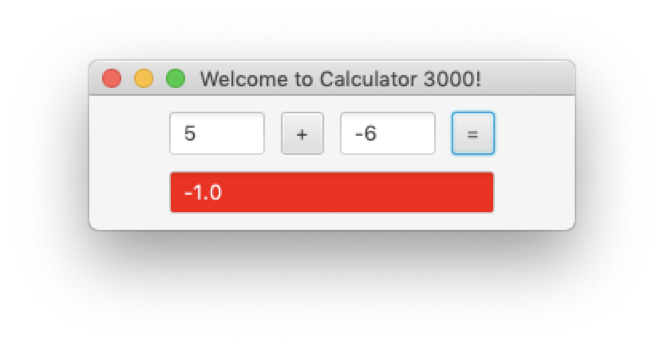
- Hitting enter when in either of the operand TextFields should also add the numbers together.
- If either of the operand TextFields are empty nothing should happen.
- If either TextField contains a noninteger value, an error message reading
Both operands must be integersshould be displayed in the result TextField and the background of the TextField should be red.
Formatting
- For organizing your Scene, try creating an HBox object and put the upper row of components in the HBox, in the order they will appear.
- Create a VBox object and put the HBox object and the answer TextField in that
- Use the VBox as the main container for your Scene.
- Use the variable names you see in the example code below.
- If you have questions about what the variable names mean, please ask.
- It will look something like this:
HBox innerPane = new HBox();
.
.
.
innerPane.getChildren().addAll(firstOperand, operator, secondOperand, equals);
.
.
.
VBox pane = new VBox();
.
.
.
pane.getChildren().addAll(innerPane, result);
- Play around with the padding and spacing of the VBox and HBox to line it up the way you would like it
- Below are links to some useful javadoc pages
JavaFX and TestFX
To run and test JavaFX programs, there are separate libraries similar to JUnit that are needed
to run and test programs using JavaFX, which is not part of the base Java language.
Testing FX programs does not work in GitHub, since there is no actual graphical desktop
there, but you can run these tests in IntelliJ to verify your program is working as
intended.
You should have already configured IntelliJ to run JavaFX. If you have not, use the Taylorial on JavaFX to get it installed and configured, then read on.
In the repository, you have a lib folder where a number of .jar files are located. These are all separate Java libraries that you can add to your project and where the TestFX libraries are. To add them to the project so you can use them do the following:
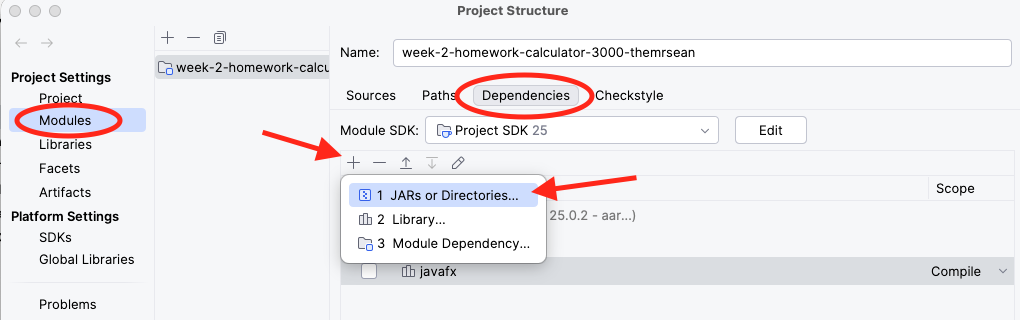
- Go to File -> Project Structure and select the
Modulestab and theDependenciestab from there.- You should see your JavaFX library here already
- IntelliJ may have already added the
libfolder to your dependencies- If so, you are done and the tests should run.
- If not:
- Click on the plus symbol under the
Dependenciestab. - Select JARs or Directories
- Navigate to your project and select the
libfolder (not the files contained inside, the folder itself)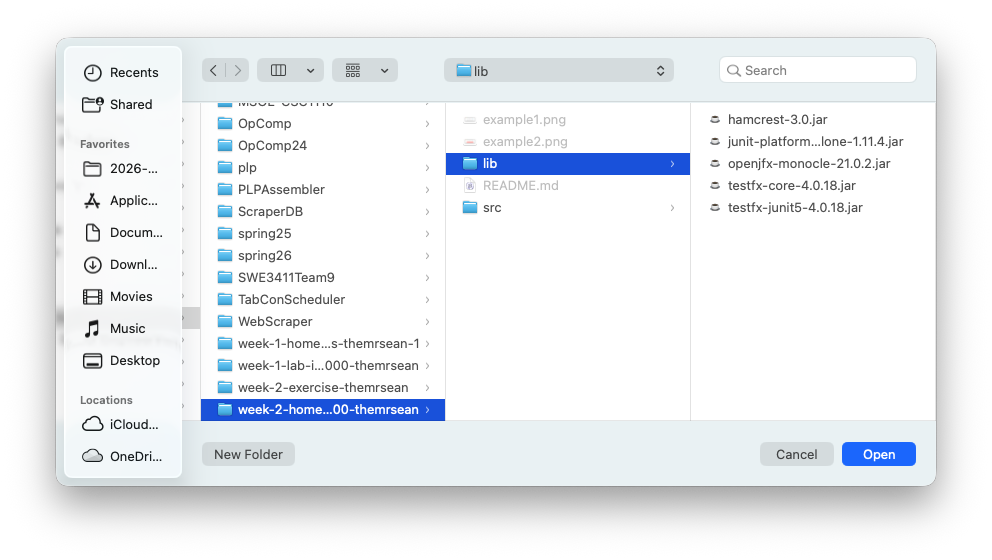
- Click Open
- Click on the plus symbol under the
Your Dependencies should now look like this:
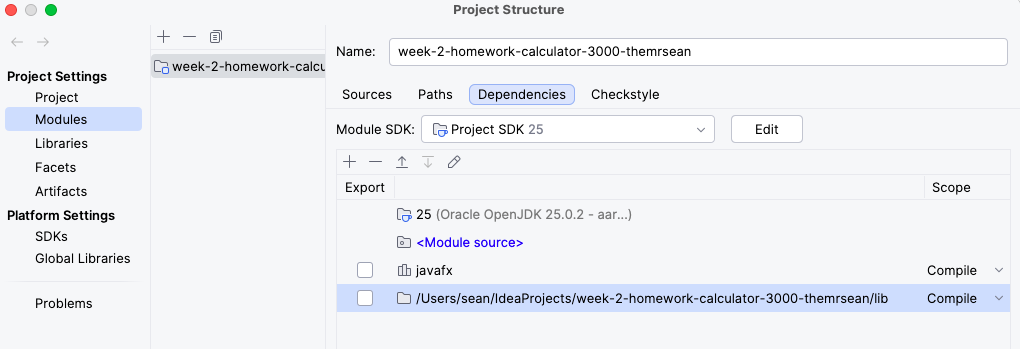
and you should be able to run the tests as normal. You will see your program open and a "robot" running through the tests. Don't try and move the cursor or type anything while this is testing, or you may interrupt the tests.